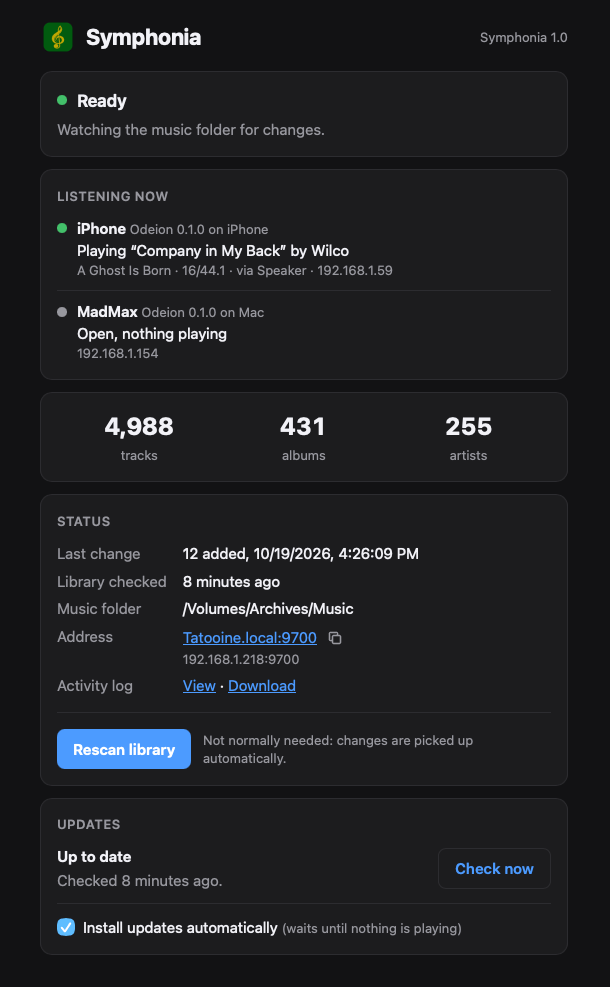
Getting started with Odeion music and Symphonia to set up your own music server only requires a few steps. Follow this guide to download and set up Symphonia, then start streaming your music to Odeion.
Download and setup your music server
- Download Symphonia, our music server software and install it by dragging it to your Applications folder on your Mac.
- Start the application and its menu will show up on the right side of your Mac’s menu bar.
- Opening the first time, macOS will ask you to grant permissions for Symphonia to find things on your local network, this permission is needed to work properly across you home network

- Click the menu and open the settings. Use the file chooser button to set the folder where you have your music files.

- Most of the other settings you can leave set to their default values, but if you want the server to restart when your Mac restarts, check the option to Start Symphonia at Login.
- If you don’t have any music files ripped, you can download our tool The Splitter which will rip your CDs into lossless FLAC files.
Sign up for TestFlight and Install ODEION
- Sign up to beta test Odeion through our TestFlight link, this will require you to install Apple’s TestFlight app which will allow you to install a pre-release version of the Odeion Music app from Apple’s App Store.
- Once it’s installed, open the Odeion app. You will be asked to select a music server. Choose the Symphonia server we set up above.

- In a moment, the Odeion will handshake with Symphonia and you will be able to browse and play your music.
- Odeion will play seamlessly to AirPods, wired headphones and USB-connected DACs. They often take over as the default system output on a Mac, iPhone or iPad.
- Playback on Apple TV will output to your TV or home theater system over the HDMI cable you use to connect your Apple TV.
- The speaker menu allows you to choose AirPlay devices like HomePods and other AirPlay equipment on your network.
- If you have a network streamer like a Denon or Marantz HEOS receiver or other audio gear that can connect to a DLNA / UPnP music server, it should appear in the Speaker drop down within Odeion. This is one playback aspect we’re most curious to hear about from beta testers since we only have a limited number of network streamers to test with.